User Management
Feature Introduction
The User Management component serves as a core component of openFuyao, providing a complete set of flexible user and role management functions for the container platform. The system supports user creation, deletion, modification, and querying, as well as role assignment, viewing, and unbinding.
- Administrators can assign appropriate roles to platform users, achieving fine-grained permission control.
- Supports inviting, removing, and binding cluster roles for cluster members, allowing administrators to set different permissions for users in different clusters.
- Supports platform-level and cluster-level role assignment, ensuring users have correct permissions when operating in multi-cluster scenarios, meeting access control requirements in multi-cluster environments.
Through this system, the openFuyao platform can improve the efficiency and security of user management, ensuring reasonable allocation and usage of resources.
Application Scenarios
Role and Permission Assignment
When access permissions need to be assigned to members of different teams, administrators can use user creation, deletion, modification, and querying functions to manage user accounts, and assign corresponding permissions to each user through the role assignment function. Users can only access specific resources within their permissions. For using the openFuyao platform, users are provided with minimum permissions to access the platform and corresponding clusters, following the principle of least privilege, enhancing platform security.
Permission Management in Multi-Cluster Scenarios
When the openFuyao platform needs to assign permissions to users across multiple clusters, administrators can manage them through cluster-level roles and platform-level roles. Cluster-level roles are used to control user permissions in specific clusters. For example, a user can only perform operations and maintenance tasks in a certain cluster but cannot access other clusters. Platform-level roles are used to manage users' global permissions across the entire platform, ensuring consistent permission control for users in cross-cluster scenarios.
Password Isolation in User Usage Scenarios
To meet compliance or privacy requirements, the platform provides a password management mechanism based on encrypted storage. User passwords are stored in the platform backend using encryption algorithms. The platform admin cannot view the user's Web Server by any means, nor has permission to read or modify user passwords. The entire process of users changing their own passwords does not require manual intervention from administrators, ensuring that only the user themselves knows their newly set password. This enhances platform security and user privacy.
Capability Scope
Multi-User Management
Supports platform administrators to create and delete users.
Supports platform administrators to view user information.
Supports users to modify user description information and password information.
When a user fails to login too many times, the multi-user management system will lock that user.
Role Management
When creating a user, a platform-level role is automatically created for the user.
Supports platform administrators and cluster administrators to invite users to clusters and assign cluster roles (cluster-admin, cluster-editor, cluster-viewer) to them.
Supports platform administrators and cluster administrators to remove users from clusters.
During authentication operations, the system performs authentication based on the roles bound to the user.
Highlight Features
- Multi-level user role permission system: Supports platform-level and cluster-level user role assignment, supporting fine-grained user access permissions.
- Intuitive user interface: Provides an easy-to-use graphical interface, simplifying user management operations.
Implementation Principle
- Backend Component Logic View
In the multi-cluster user management system, it mainly consists of User Controller and User Management backend. User Controller is mainly responsible for the lifecycle management of user instances, including the creation of role bindings and a series of chain reactions involved when creating and deleting Users. User Management backend serves as the backend service responsible for receiving frontend call requests, including but not limited to creating user instances, viewing user lists, filtering users in clusters, viewing role lists, and deleting users. When the platform is created, default platform-level roles and cluster-level roles are automatically generated.
Figure 1 Backend Logic View 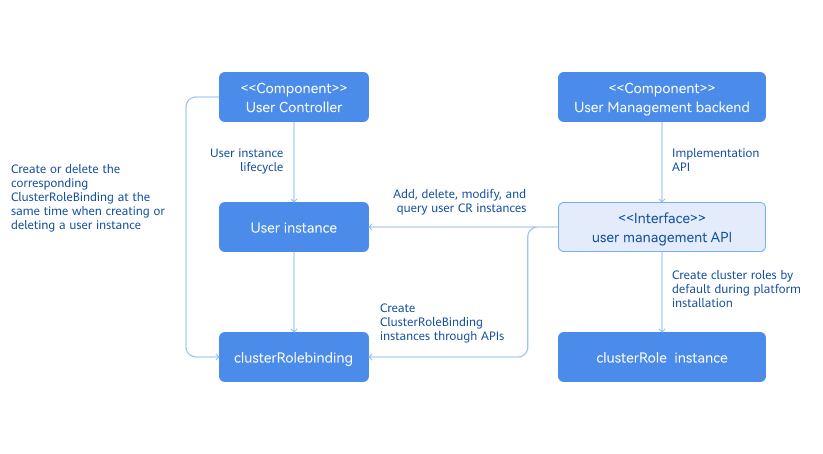
- User State Machine Model View
Each user instance has a state that describes the availability of that user. The states are "Locked" and "Unlocked". Both states correspond to an event for triggering, and no other circumstances except the corresponding event can trigger the state. As described in the state machine view, users have an "Unlocked" state when they are initialized and created.
When a user enters an incorrect password more than 5 times during login, that user will enter a locked state. Users in the locked state cannot login to the openFuyao platform and will remain locked for 20 minutes. After 20 minutes, the user will be automatically unlocked. After unlocking, the user can try again by entering the correct username and password. Similarly, after accumulating 5 incorrect entries, the user will enter the locked state again, and so on. This design is intended to prevent brute-force password cracking scenarios, and this trigger mechanism applies to all users.
Figure 2 State Machine Model View 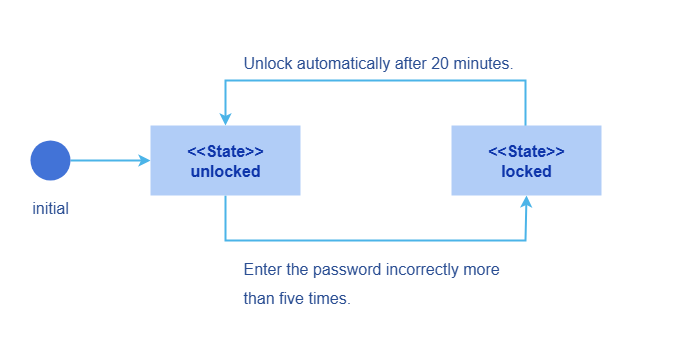
- Multi-User Management Sequence Diagram
Figure 3 Multi-User Management Sequence Diagram 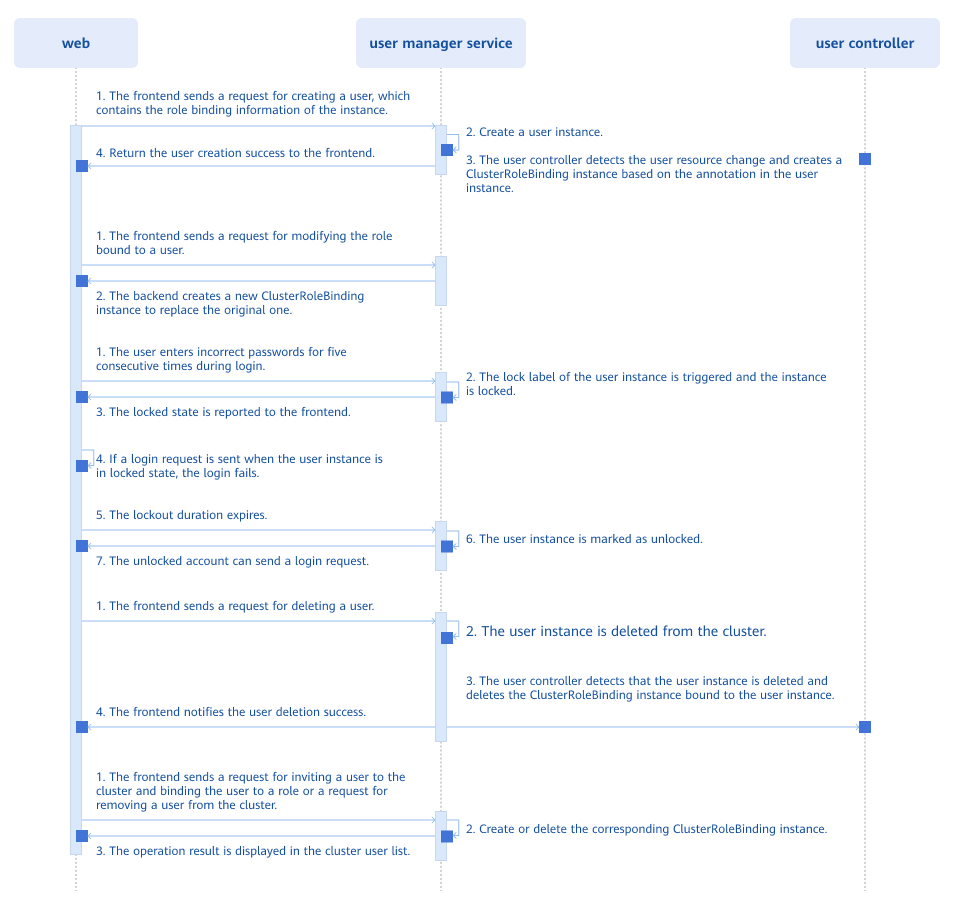
All CRUD operations on resources are implemented through API interfaces exposed by the user manager service. When user resource instances in the cluster change, the user crd controller senses the resource changes and performs corresponding operations. When a user is created, the controller senses the fields of its user instance and decides which clusterRoleBinding to create. When a user is deleted, the controller also senses this change and deletes the corresponding clusterRoleBinding.
User password login locking logic: After each incorrect password entry, the frontend click action sends a request to add an error count to the backend user manager service. The backend reads the user's current state and processes the new error count. When the error count reaches a cumulative 5 times, the state changes to "Locked". If a request is sent from the frontend while in the locked state, it will attach a timestamp. By comparing this timestamp with the timestamp marked in the user instance, the system determines whether the user has exceeded the lock time to change its lock state.
Relationship with Related Features
Authentication and Authorization Module: The user management module stores user information CR resources. When the authentication module verifies user passwords, it retrieves user information for validation. When using the RBAC mechanism for authorization, the permission scope of each user depends on the roles bound to each user by the user management module, such as platform-level roles and cluster-level roles. These roles limit the operational permissions of each user on the platform.
Multi-Cluster Management Module: When users perform cluster onboarding operations, the multi-cluster management module needs to verify whether the user has platform administrator permissions. When inviting users to a certain cluster, the multi-cluster management module needs to add permissions for that user to access the cluster.
Related Examples
Code link: openFuyao/user-management-operator (gitcode.com)
Using User Management from Administrator Perspective
View User Information
Prerequisites
The logged-in user has the platform admin role.
Operation Steps
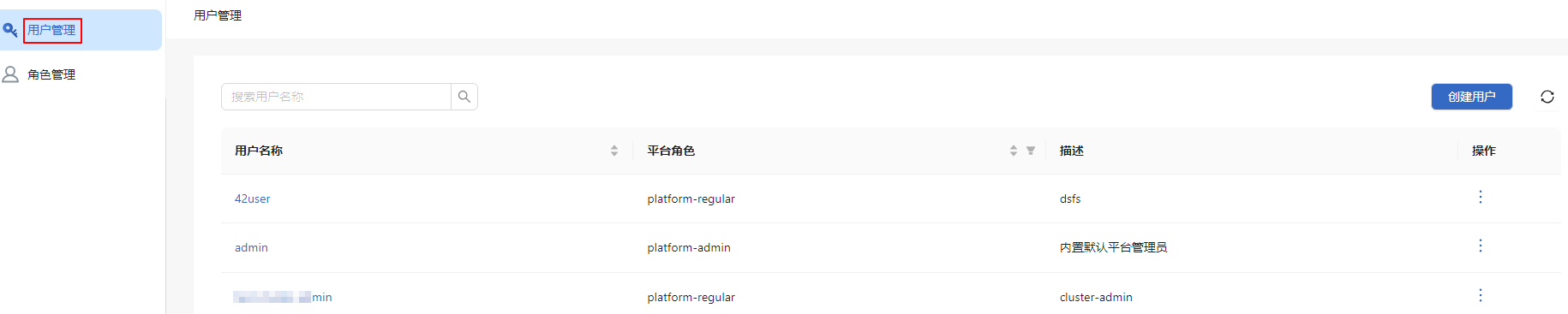
Click "User Management" on the right side of the openFuyao platform main menu bar to enter the "User Management" interface. The interface displays user list information, including "Username", "Platform Role", etc.
Figure 4 User Management
Click the search box at the top left of the user list, enter keywords to perform fuzzy search by username.
Create User and Assign Permissions
Prerequisites
Creating a user requires the "platform admin" role.
Operation Steps
Click "User Management" on the right side of the openFuyao platform main menu bar to enter the "User Management" interface.
Click "Create User" in the top right corner, and the "Create User" window pops up.
Enter the corresponding content in the input boxes for "Username", "Initial Password", "Platform Role", and "User Description" in sequence.
Figure 5 Create User
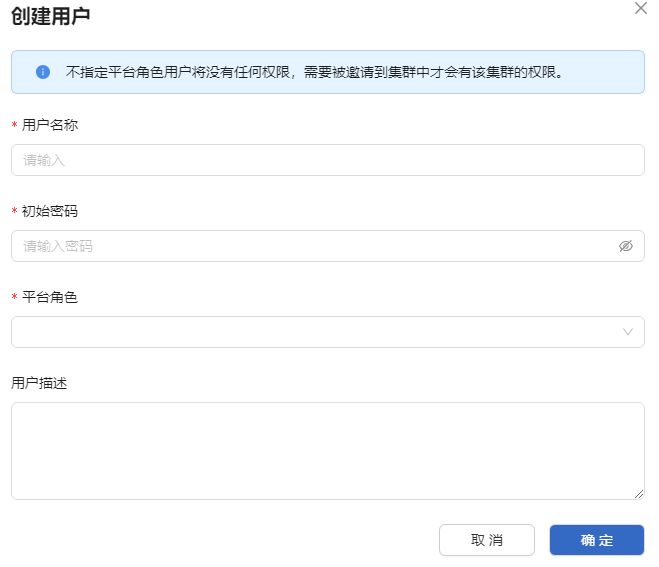
Click "OK" to complete creating a new user.
Note:
- The password created by the administrator is an initial password. Users need to change the login password immediately after logging into the system for the first time.
- Created users can be assigned corresponding platform roles. When invited to a cluster, they will have corresponding cluster role permissions.
- The platform role that can be assigned is platform admin.
Related Operations
You can click the operation column  on the list page or click "Operation" in the top right corner of the details page to modify or delete users as needed.
Table 1 Related Operations Description
| Operation | Description |
|---|---|
| Modify |
|
| Delete | After a user performs deletion, a selected user instance and its bound roles will be deleted and cannot be recovered. |
View Platform-Level Role List
Prerequisites
The logged-in user has the platform admin role.
Operation Steps
- Click "User Management" on the right side of the openFuyao platform main menu.
- Click "Role Management" in the left menu to enter the "Role Management" interface. The interface displays role list information, including "Role Name" and "Description".
Figure 6 Role Management 
Invite Cluster Members
Prerequisites
Inviting cluster members requires the platform admin or cluster admin role.
Operation Steps
- Click "Cluster Members" in "Permission Management" on the left navigation bar to enter the "Cluster Members" interface.
- Click "Invite" in the top right corner of the cluster members list, and the "Invite Members" window pops up.
- In the "Invite Members" window interface, click the
 icon in the "Operation" column corresponding to a user in the member list.
 - Select the "Role" to be assigned to this user. After selection, the user's role will be previewed in the "Assign Role" column.
- Click "OK" to invite the selected user to the cluster.
View Cluster Members
Prerequisites
The logged-in user has the platform admin or cluster admin role.
Operation Steps
Click "Cluster Members" in "Permission Management" on the left navigation bar to enter the "Cluster Members" interface. The interface displays the cluster members list, including "Member Name", "Role", and other information.
Figure 7 Cluster Members List

Click the search box at the top left, you can perform fuzzy search by username through entering keywords.
Assign Cluster Roles
Prerequisites
Assigning cluster roles requires the platform admin or cluster admin role.
Operation Steps
- Click "Cluster Members" in "Permission Management" on the left navigation bar to enter the "Cluster Members" interface.
- Click "Modify Role" in the "Operation" column of the members list, and the "Modify Role" window pops up.
- Click the "Role" dropdown box and select the role to assign. For cluster members, at least one role must be bound. The roles that can be bound are cluster admin, cluster editor, and cluster viewer.
- Click "OK" to complete the modification.
Related Operations
You can click the operation column on the list page to remove cluster members as needed.
Table 2 Related Operations Description
| Operation | Description |
|---|---|
| Remove | After removing a user, all role bindings of that user in the cluster will be deleted and cannot be recovered. |
Follow-up Operations
Click "Cluster Roles" in "Permission Management" on the left navigation bar to enter the "Cluster Roles" interface, where you can view cluster role list information, including "Role Name" and "Description".
Using User Management from User Perspective
Login to openFuyao Platform
In the openFuyao login interface, you can enter the openFuyao platform by entering the correct username and login password.
User locked after triggering rules by incorrectly entering login password:
- After a user incorrectly enters the password to a certain extent, the account will be triggered to be locked.
- After exceeding the lock time, the account will be automatically unlocked, and the user can continue to try logging in until the lock is triggered again or login is successful.
- Incorrect input rules: If incorrect passwords are entered more than 5 times cumulatively within 5 consecutive minutes, the account will be locked by the system for 20 minutes.
Modify User Description Information
Operation Steps
- Click the user avatar or username in the top right corner of the openFuyao platform to enter the "User Settings" interface.
- Click "Basic Information" in the left navigation bar to enter the basic information interface.
- Modify the user description in the "Description" input box.
- Click "OK" to complete modifying the description.
Related Operations
You can click "Password Settings" on the left side of the user settings interface to modify the login password as needed.
Table 3 Related Operations Description
| Operation | Description |
|---|---|
| Modify Password | Password Validation Rules: Length requirement: Password length 8-32 characters. Complexity requirement: Must contain English letters, numbers, special characters `~!@#$%^&*()-_=+|[{ }];:'",<.>/? Must contain at least one special character. Username check: Cannot be the same as the account or the reverse of the account. Input check: Two password entries must be consistent. |
Follow-up Operations
You can click "Logout" in the dropdown menu of the user avatar or username in the top right corner of the openFuyao platform.
Table 4 Related Operations Description
| Operation | Description |
|---|---|
| Logout | You need to re-enter the correct username and password when logging in again. |
Licensed under the MulanPSL2
 YueGongWangAnBei No.44030002007300