Quick Start
The openFuyao community distribution adopts a "core platform + pluggable components" architecture. The core platform is deeply optimized based on open-source Kubernetes, providing out-of-the-box containerized cluster management capabilities, covering basic functions such as resource orchestration, elastic scaling, and multi-dimensional monitoring to meet the basic operational needs of enterprise-level production environments. Through the built-in application marketplace, it provides a rich set of industry-level high-value components, covering key capabilities such as AI/general computing hybrid scheduling, unified heterogeneous resource management, dynamic intelligent scheduling, and end-to-end observability enhancement.
This document will introduce how to quickly install an All-In-One (AIO) single-node business cluster on an openEuler 22.03 LTS operating system node, access the openFuyao cluster management interface, and successfully deploy an application from the application marketplace.
Quick Installation
The following introduces the operations for quickly installing a cluster using the openFuyao installation tool.
Prerequisites
The openFuyao platform solution supports installation and use on the following operating systems and architectures:
| Operating System | Version | Architecture |
|---|---|---|
| openEuler | 20.03 | ARM64, x86_64 |
| openEuler | 22.03 | ARM64, x86_64 |
| openEuler | 24.03 | ARM64, x86_64 |
| Ubuntu | 22.04 | ARM64, x86_64 |
Note:
Other operating system versions have not been tested and may encounter unexpected issues.
Resource configuration requirements for nodes are as follows:
Table 1 Minimum Deployment Hardware Configuration
| Node Type | Number of Nodes | vCPU (cores) | Memory (GB) | Hard Disk |
|---|---|---|---|---|
| Bootstrap Node | 1 | 2 | 4 | System disk >=100G |
| Business Cluster Node | 1 | 8 | 16 | System disk >=100G |
The bootstrap node and business cluster node can be the same node.
Table 2 Recommended Hardware Configuration
| Node Type | Number of Nodes | vCPU (cores) | Memory (GB) | Hard Disk |
|---|---|---|---|---|
| Bootstrap Node | 1 | 2 | 4 | System disk >=100G |
| Business Cluster Node | Determined by actual situation | Determined by actual situation | Determined by actual situation | Determined by actual situation |
When Simultaneous Multithreading (SMT) or Hyper-Threading is not enabled, one vCPU is equivalent to one physical core. When enabled, use the following formula for conversion: vCPU = (threads per core × number of cores) × number of sockets.
Node Requirements
- Nodes can connect to the external network.
- Nodes can be logged in using the root user.
- The tar tool needs to be installed on the bootstrap node.
Notice:
It is recommended that your node environment is sufficiently clean and has not installed any Kubernetes components, otherwise version conflicts may occur leading to installation failure.
Version Download
| openFuyao Package | x86_64 Download | ARM Download |
|---|---|---|
| openFuyao v26.03 | Download | Download |
Installing a Cluster with openFuyao
To install a cluster with openFuyao, you need to first initialize the bootstrap node, and then use the openFuyao management interface on the bootstrap node to install the business cluster.
Log in to the bootstrap node using the root user.
Download the installation package and installation script.
Note:
If the installation package has been downloaded in advance, upload the downloaded installation package to the local machine, extract it, and move the installation binary files to the system path.bash# Method 1: Quick download curl -sfL https://openfuyao.obs.cn-north-4.myhuaweicloud.com/openFuyao/bkeadm/releases/download/1.2.2/download.sh | bashbash# Method 2: Download with integrity verification ## Download the download.sh script file curl -LO https://openfuyao.obs.cn-north-4.myhuaweicloud.com/openFuyao/bkeadm/releases/download/1.2.2/download.sh ## Download the verification file for download.sh and verify it (optional). Successful verification will output -: OK. If verification fails, contact openFuyao community maintainers to identify the cause curl -LO https://openfuyao.obs.cn-north-4.myhuaweicloud.com/openFuyao/bkeadm/releases/download/1.2.2/download.sh.sha256 sha256sum -c <(cat download.sh.sha256) < download.sh ## Run the download.sh file to download the bke installation tool. The sha256sum will be verified during execution chmod +x download.sh && ./download.shInitialize the bootstrap node.
bashbke init --onlineImage cr.openfuyao.cn/openfuyao/bke-online-installed:1.2.2Confirm the node initialization result.
4.1 After the automated installation process in the previous step is successfully executed, you can log in to the openFuyao management interface on the bootstrap node to check whether the bootstrap node initialization is successful.
Note:- The login URL for the openFuyao management interface on the bootstrap node is "https://bootstrap node IP address:30010".
- For the first login, the default username is admin and the default password is test@1234.
4.2 Execute the following command to view the status of all Pods on the machine.
bashkubectl get pod -A Note:- Bootstrap node initialization takes about 15 minutes. Installation is complete when all Pod statuses are running. The actual time depends on the actual network conditions, and the waiting time will be longer when the network speed is slow.
- The components deployed by the installation and deployment tool all use default configurations and are only used to test the openFuyao platform functions. If used in a production environment, please adjust the security configurations of Kubernetes, container runtime, and network plugin components yourself.
Install the business cluster. For detailed operation steps, please refer to Installing Business Clusters on the Management Interface.
Confirm successful installation of the business cluster.
Execute the following command to view the Pod status. When all Pod statuses are running, it indicates that the environment installation is complete.
bashkubectl get pod -A Note:- Bootstrap node initialization takes about 15 minutes. Installation is complete when all Pod statuses are running or completed. The actual time depends on the actual network conditions, and the waiting time will be longer when the network speed is slow.
- The components deployed by the installation and deployment tool all use default configurations and are only used to test the openFuyao platform functions. If used in a production environment, please adjust the security configurations of Kubernetes, container runtime, and network plugin components yourself.
Login to openFuyao Management Interface
Enter "https://management interface login IP address:openFuyao web service port" in the browser, enter the username and password to log in to the openFuyao management interface.
- You need to change the password for the first login.
- The default openFuyao web service port is 31616.
For detailed introductions to the management platform functions and usage guidance, please refer to the User Guide.
Using the openFuyao Management Interface
The following uses apache as an example to explain how to deploy an application on the openFuyao management interface.
Select "Application Marketplace > Repository Configuration" in the left navigation bar of the openFuyao platform to enter the "Repository Configuration" interface.
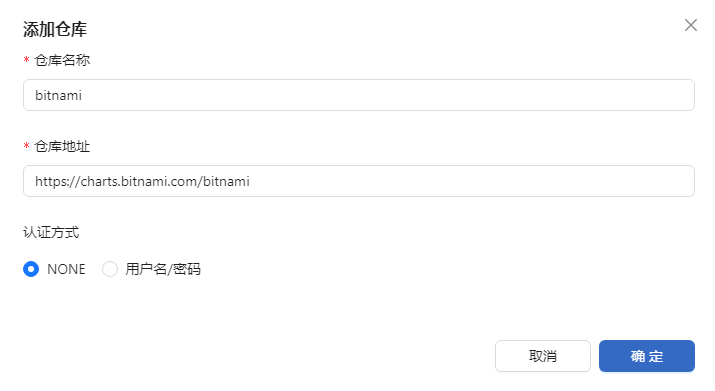
Click "Add Repository", enter the repository name and repository address, and click "OK".
Example link
https://charts.bitnami.com/bitnamiFigure 1 Add Repository
After completion, you can see the added repository.
Figure 2 Added Repository

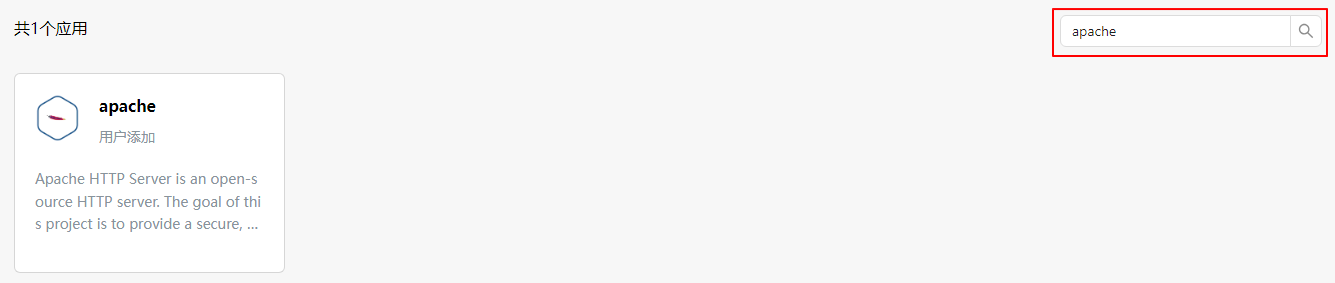
Select "Application Marketplace > Application List" in the left navigation bar to enter the "Application List" interface. Search for "apache" in the search box in the upper right corner to see the apache application.
Figure 3 Apache Application
Click "apache" to enter the application details page.
Click "Deploy" on the application details page to deploy the application.
Note:
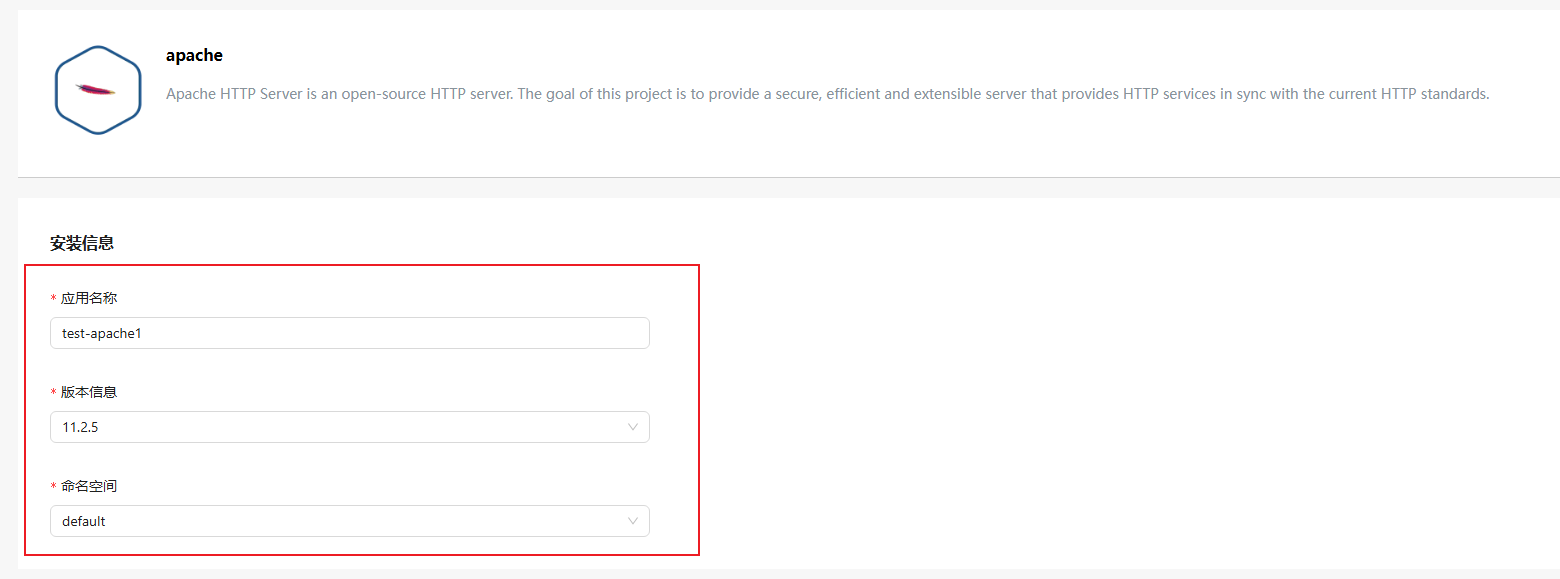
The openFuyao platform does not perform security verification on applications deployed by users through third-party repositories. Please ensure the security of the deployed applications.Fill in the installation information on the deployment page. You can customize the application name and namespace.
Figure 4 Installation Information
Click "OK" in the lower right corner of the page to start deploying the application.
After deployment is complete, you can enter the "Application Management" interface to view the deployment results.
Figure 5 Deployment Results

Congratulations! You have successfully installed the apache application.
To learn more details about the openFuyao management interface, please refer to the User Guide and Developer Guide.
Licensed under the MulanPSL2
 YueGongWangAnBei No.44030002007300