Mind Inference Service Management Plug-in
Feature Overview
Mind Inference Service (MIS) management plug-in (mis-management) is a unified management plug-in for the Ascend AI inference scenario and provides visualized and declarative full-lifecycle management capabilities for MISs. This plug-in provides the WebUI for you to easily register an MIS, download model weight files, deploy instances, and monitor the status, significantly lowering the MIS usage threshold.
NOTE
Currently, mis-management supports text-based large language model (LLM) and vision-language model (VLM) MISs, but does not support vectorized EMB MISs.
Application Scenarios
- AI engineers need to quickly deploy and manage MISs.
- Users need to centrally manage multiple inference models and their running instances.
Supported Capabilities
- Microservice management: You can create, view, modify, and delete MISs on the WebUI.
- Configuration management: Multiple MIS configurations are supported to adapt to different hardware environments and inference requirements.
- Automatic pulling: Model weight files can be downloaded in one-click mode, simplifying the deployment process.
- Instance management: You can view, start, and delete MIS instances on the WebUI.
- Status monitoring: You can view the operating status of model weight files and instances in real time.
Highlights
- Visualized WebUI: You can perform all operations on the WebUI without compiling YAML configuration files.
- Full lifecycle management: The entire process from microservice registration, weight download, instance deployment, to monitoring is included.
- Deep integration with the MIS operator: Standardized management of MISs is implemented based on the MIS operator.
- Unified storage management: Model weight files are managed in a unified manner using PVCs, and shared storage is supported.
Basic Concepts
- Microservices: The inference model and containerized service units of the operating environment of the model are included.
- Weight files: They are the parameter files required for the model inference. Generally, a weight file is large and needs to be managed separately.
- Instances: Microservices are running on instances. The number of replicas and resource specifications can be configured.
- Inference configuration: The inference parameter configuration is optimized for a specific hardware environment.
Implementation Principles
The following figure shows the architecture of each component in the plug-in.
Figure 1 MIS management plug-in architecture
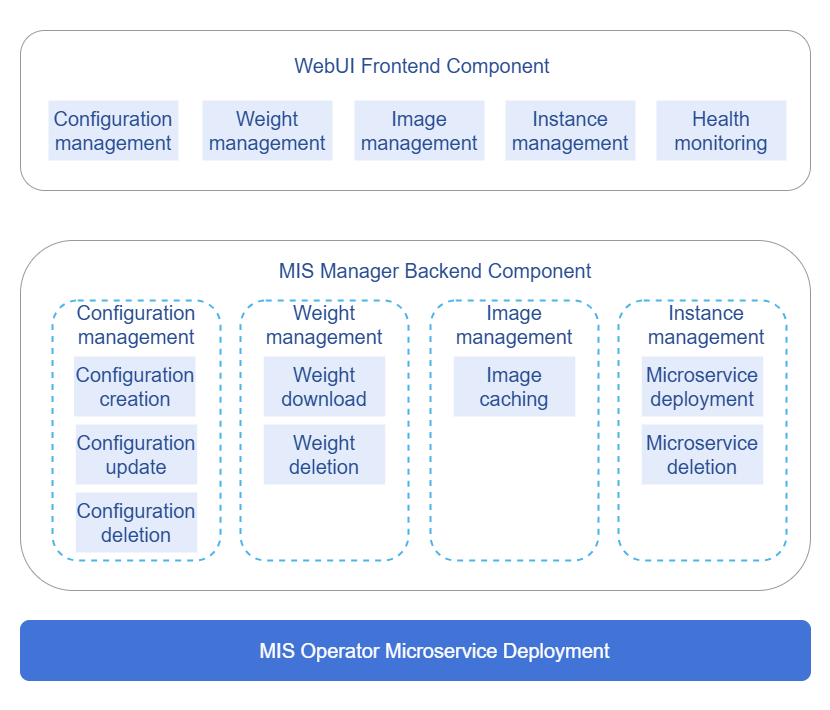
The plug-in uses the frontend and backend separation architecture.
- Frontend: The frontend is a WebUI implemented based on JavaScript and provides user interaction functions.
- Backend: The backend is an API service written in Go. It processes service logic and calls Kubernetes APIs.
- Storage: The mounted PVCs are used to implement persistent storage of configuration information and model weight files.
Working process:
- A user registers microservice information on the WebUI.
- The model weight files are automatically downloaded based on the configuration.
- The user deploys microservice instances. The system calls the MIS operator to create the corresponding Kubernetes resources.
- The instance status is monitored in real time and displayed on the WebUI.
Relationship with Related Features
This plug-in depends on the MIS operator to manage the lifecycle of MIS instances. The MIS operator must be deployed in a Kubernetes cluster in advance.
Installation
Prerequisites
- A Kubernetes cluster has been deployed.
- The MIS operator has been installed.
- PVC storage has been configured for model weight storage.
- The Ascend model repository (AscendHub) can be accessed.
Starting the Installation
Before installing the plug-in, ensure that the Kubernetes environment is ready.
-
Create a namespace.
kubectl create ns mis-management -
Build images.
nerdctl build -t mis-management:latest -f build/Dockerfile . -
Use Helm for service installation.
helm install -n mis-manager mis-management charts/mis-management -
Run the following command to apply the service configuration:
kubectl apply -f charts/mis-management/templates/service.yaml -
After the installation is complete, check whether the service is running properly.
kubectl get pods -n mis-management
kubectl get svc -n mis-management
Performing Microservice Management
Prerequisites
You have performed the operations in Installation.
Context
The microservice repository is used to manage metadata information of MISs.
Constraints
Only the MISs provided by AscendHub are supported.
Adding a Microservice
- Log in to the openFuyao platform and choose Mind Inference Service from the navigation pane.
- Click Microservice Repository. The microservice list page is displayed.
- In the upper right corner of the page, click Add Microservice.
- In the displayed Add Microservice dialog box, enter the following information:
- Microservice name (for example,
qwen2.5-0.5b-instruct) - Image name (for example,
swr.cn-south-1.myhuaweicloud.com/ascendhub/qwen2.5-0.5b-instruct:7.1.T9-aarch64) - Inference configuration (for example,
atlas800ia2-1x32gb-bf16-vllm-default,atlas800ia2-1x32gb-bf16-vllm-latency, andatlas800ia2-1x32gb-bf16-vllm-throughput, separated by carriage returns.) For details, see theoptimization configurationdetails in the inference image description in the MIS repository.
- Microservice name (for example,
- If the value of Weight status is Not downloaded, click Download.
- Click OK to add the microservice.
Related Operations
-
Viewing an MIS: Click the name of a created microservice to view its basic information.
-
Editing an MIS: On the basic information page of the microservice, click the edit button
 on the right of Image name and Inference configuration to modify the corresponding content.
 -
Deleting an MIS: Click
 and choose Delete in the Operation column. After confirming the risk warning, the MIS is deleted.
Using the Weight Repository
Prerequisites
You have performed the operations in Installation.
Context
The weight repository is used to manage the status and storage of model weight files.
Constraints
Ensure that the storage space is sufficient for model weight files.
Checking the Weight File Status
-
Log in to the openFuyao platform and choose Mind Inference Service from the navigation pane.
-
Click Weight Repository to go to the Weight Warehouse page. The list page displays information such as Microservice name, Inference configuration, Weight path, Image size, and Weight status.
-
Check the weight status.
Entry 1: Click
and choose Deploy Instance in the Operation column of Microservice Repository.Entry 2: Click Deploy Microservice Instance in the upper right corner of Instance Management on the left to view Weight status in the dialog box that is displayed.
Entry 3: Click Weight Repository in the left to view Weight status.
Downloading the Weight File Again
-
Download the weight file again in either of the following ways:
-
Method 1 (recommended): Click
 and choose Delete in the Operation column on the Weight Repository page, set the same parameters as those in the instance deployment scenario, and click Download.
 -
Method 2: If the value of Weight status is Failed, click
and choose Re-download in the Operation column on the Weight Repository page.
-
-
After the download is complete, the value of Weight status changes to Normal.
Related Operations
Deleting a weight file: Click and choose Delete in the Operation column. After confirming the risk warning, the weight file is deleted.
If an inference instance is deployed before the model weight files are downloaded, the deployment may fail.
Instance Management
Prerequisites
You have performed the operations in Installation.
Context
You can click Instance Management to manage the deployment and operating status of inference service instances.
Constraints
Microservice instances must be deployed using the MIS operator.
Deploying Instances
-
Log in to the openFuyao platform and choose Mind Inference Service from the navigation pane.
-
You can deploy instances from either of the following entry points:
-
Click Microservice Repository on the left. On the microservice list page that is displayed, click
and choose Deploy Instance in the Operation column. -
Click Instance Management on the left. On the Instance Management page that is displayed, click Deploy Microservice Instance in the upper right corner.
-
-
In the Deploy Instance dialog box that is displayed, perform the following operations:
- Set Microservice instance name (for example,
qwen2.5-0.5b-instruct-instance-1). - Select a value (for example,
atlas800ia2-1x32gb-bf16-vllm-default) for Inference configuration. - Select a value (ClusterIP or NodePort) for Service type.
- If you select NodePort, you need to specify Port, for example,
30001. The port number ranges from 30000 to 32767. - Set NPUs in a single instance (for example,
1). Multiple NPUs can be selected only for instances with parallel inference configurations. - Set Instances, for example,
1.
- Set Microservice instance name (for example,
-
If the value of Weight status is Not downloaded, click Download.
-
Click OK to create an instance.
-
View the status in the instance list. Wait until the status changes to Ready.
Follow-up Operations
After the instance is deployed, you can access the MIS API using the URL in the Access path column in the instance list on the Instance Management page. The access addresses for the access path localhost:30001/openai/v1/models are as follows:
# Address for accessing basic model information
http://{Host address}:30001/openai/v1/models

# Address for accessing the chat interface
http://{Host address}:30001/openai/v1/chat/completions
For details about the request parameter format, see the image description in the MIS repository.
Related Operations
-
Viewing the instance status: Click the name of a created instance to view its basic information.
-
Deleting an instance: Click the delete button
in the Operation column. After the risk warning is confirmed, it is deleted.
FAQ
-
Microservice deployment failure
Solutions:
- Ensure that the MIS operator has been correctly deployed.
- Ensure that the model weight files have been downloaded.
- Check whether the Kubernetes cluster resources are sufficient.
- Check the instance status details to locate the fault.
-
Model weight file download failure
Possible causes:
- The network connection is faulty. As a result, the model repository cannot be accessed.
- The storage space is insufficient.
- The image configuration is incorrect.
Solutions:
- Check the network connection and firewall settings.
- Ensure that the PVC storage space is sufficient.
- Verify whether the image name and configuration are correct.
- Delete the corresponding weight file and download it again.
Appendixes
Supported Inference Configurations
Common inference configurations are as follows:
atlas800ia2-1x32gb-bf16-vllm-default: default configurationatlas800ia2-1x32gb-bf16-vllm-latency: low-latency optimization configurationatlas800ia2-1x32gb-bf16-vllm-throughput: high-throughput optimization configuration