Extension Development Guide
Feature Overview
The openFuyao computing container platform (openFuyao for short) provides pluggable extension capabilities and allows users to independently develop extensions to enhance both the backend capabilities and the frontend interface of openFuyao. This delivers a more efficient, flexible, and customizable cloud-native experience. openFuyao provides corresponding APIs and templates for users to integrate or develop third-party extensions. For details, see Extension Management.
Restrictions
- To develop an extension or integrate an extension developed by yourself, modify the frontend code and edit related configuration files based on the openFuyao extension standards. For details, see Development Procedure.
- To use third-party extensions from non-official sources, openFuyao cannot prevent risks caused by issues inherent in those extensions.
- If too many extensions are enabled or too many resources are required by the extension UI, network requests may be delayed, affecting the overall loading performance of the interface.
Environment Preparation
Environment Requirements
- The openFuyao cluster environment is available. For details, see Installation Guide.
- The following development tools required for developing extensions are ready:
- Frontend development: Node.js 18+
- Image building: Docker 18+
- Software packaging: Helm 3.8+
Setting up the Environment
According to the Environment Requirements, install the required development tools by visiting the official websites of the corresponding software.
Verifying the Environment Setup
-
Run the following command to check whether all pods in the openFuyao system are in the Running state:
kubectl get pod -n openfuyao-system -
Run the following commands to check the versions of the development tools and confirm that they are installed successfully:
node -v
docker version
helm version
Using Extensions
Usage Scenario Overview
An existing frontend interface can be mounted to the openFuyao frontend as an extension UI. After developing the frontend interface of an extension, developers must perform certain adaptations and edit configuration files so that it can be detected and loaded by the openFuyao frontend.
System Architecture
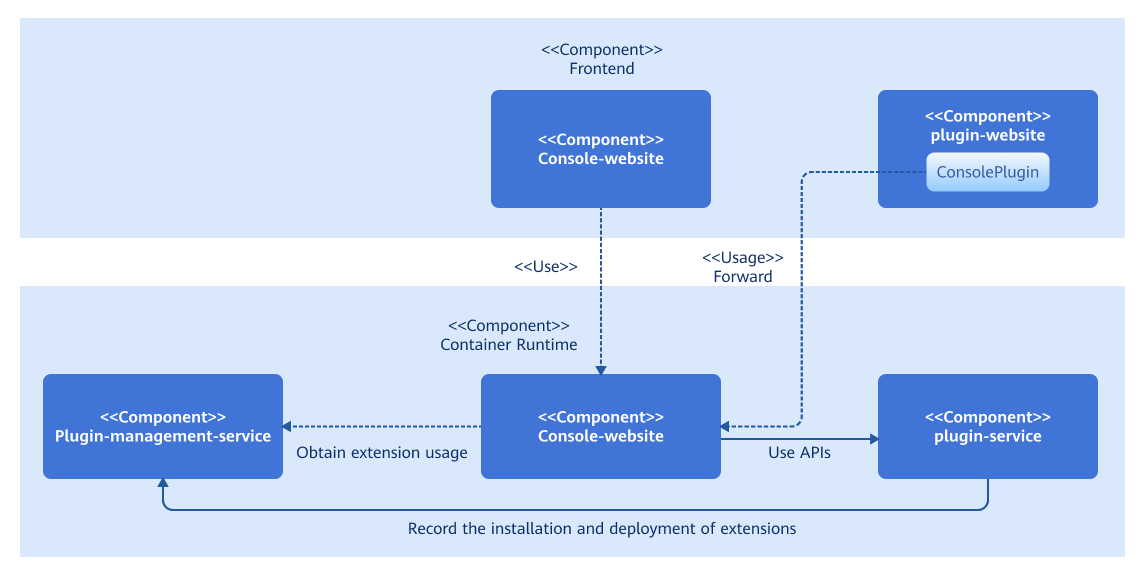
Extensions can be configured with customizable backend and frontend services, including their quantity and names. Each extension also includes a ConsolePlugin resource, which provides frontend rendering configurations and backend routing rules. Within the openFuyao platform, the console-service module queries the plugin-management-service APIs to determine whether the extension frontend is enabled in the cluster, and then returns the result to the frontend. In addition, the console-service module forwards frontend resource requests or backend API calls of the extension to the corresponding services based on the configurations in the ConsolePlugin resource.
API Description
None.
Development Procedure
-
Develop or modify the frontend.
openFuyao's pluggable architecture allows you to mount independent frontend interfaces onto the openFuyao frontend management plane without making extensive modifications to the source code. To do so, you must first provide a unique extension name and create an
extension.jsfile in the project directory with the following content:const config = {
menu: {
pluginName: <Extension name>,
},
};
export default config;The openFuyao frontend creates a unique mount point for the extension based on its name. The HTML label ID is
<Extension name>_root. Therefore, the rendering mount point needs to be changed for the entry function of the extension frontend. The following uses the extension frontend developed using openInula as an example to describe how to modify the entry function:// Before: index.html
<div id="root"></div>
// After: index.html
<div id="xxxx_root"></div> // xxxx indicates the extension name.
// Before: index.jsx
Inula.render(<App />, document.querySelector('#root'));
// After: index.jsx
Inula.render(<App />, document.querySelector(`#${extensionConfig.menu.pluginName}_root`));The extension UI is dynamically introduced to the openFuyao frontend management plane as a JavaScript ES module and must be packaged based on the following configuration.
-
Install a CSS-style plug-in (using Vite as an example).
npm install vite-plugin-css-injected-by-js postcss-prefix-selector -
Add build configuration items to
vite.config.js. In the following example, a{pluginName}.mjsfile is built in thedist/{pluginName}path, and a style sheet dedicated to the extension is generated to prevent style conflicts that may occur after mounting.import cssInjectedByJsPlugin from 'vite-plugin-css-injected-by-js';
import postcssPrefixSelector from 'postcss-prefix-selector';
import extension from './src/extension.js';
const { pluginName } = extension.menu;
// vite.config.js
export default {
// Add plugins.
plugins: [
cssInjectedByJsPlugin(),
// Other plugins
...
],
// Add the following build configuration.
build: {
lib: {
entry: path.resolve(__dirname, 'index.html'),
name: pluginName,
formats: ['es'],
},
rollupOptions: {
output: {
entryFileNames: `${pluginName}/${pluginName}.mjs`,
},
},
},
// Plugin style configuration
css: {
postcss: {
plugins: [
postcssPrefixSelector({
prefix: `#${pluginName}_root`,
transform(prefix, selector, prefixedSelector) {
// Skip body and html styles.
if (selector.startsWith('body') || selector.startsWith('html')) {
return selector;
}
return prefixedSelector;
},
}),
],
},
},
define: {
'process.env': 'new Object({ NODE_ENV: "production" })',
},
// Other configurations
...
};
-
-
Build image modules.
An extension may include several frontend extension interfaces and backend extension services. You must build images for each service, deploy them in the cluster (for example, using Deployment), and expose them through Services.
 NOTE
NOTE
The frontend and backend design of openFuyao extensions must adhere to the following specifications:- Extension backend APIs must start with
/rest/{pluginName}so that extension-related modules of the openFuyao platform can identify the corresponding extension.pluginNameis the extension name, which must be the same as that inextension.js. - The name of the extension frontend interface module must be
{pluginName}.mjs.pluginNamemust be the same as that inextension.js. (If it is built and configured using Vite in step 1, the default ES module file name is{pluginName}.mjs.) - When obtaining the frontend interface module from the frontend service container, ensure that the path for obtaining the file is
/dist/{pluginName}.mjs. (You are advised to use NGINX and store the ES module file underhtml/dist/in the NGINX container. For details, see the log component Dockerfile.)
- Extension backend APIs must start with
-
Configure resources.
In the openFuyao pluggable architecture, the ConsolePlugin custom resource is used to discover and load frontend extensions and define the configuration files for declaring backend API forwarding rules of extensions. To ensure the proper operation of extensions, you need to provide the ConsolePlugin resource.
Take the log component as an example. The component name is
logging. It provides an extension frontend interface and exposes a set of backend APIs prefixed with/rest/logging.apiVersion: console.openfuyao.com/v1beta1
kind: ConsolePlugin
metadata:
name: logging
spec:
pluginName: logging
displayName: "Logging"
entrypoint: /container_platform
subPages:
- pageName: logSearch
displayName: "Log Query"
- pageName: logSet
displayName: "Log Configuration"
backend:
type: Service
service:
name: logging-operator
namespace: logging-ns
port: 8080
enabled: trueTable 1 Parameters in the configuration file
Parameter Type Required Description pluginName string Yes Unique name of an extension. displayName string Yes Name of the extension displayed on the menu. entrypoint string Yes Position of the navigation button on the page. Currently, /and/container_platformare supported.order string No Sequence of the extension on the menu. subPages subPage[] No Submenu of the extension displayed on the menu. subPages[].pageName string Yes Name of the extension subpage. subPages[].diaplayName string Yes Name of the extension subpage displayed on the menu. backend.type string Yes Access method for the extension backend. Currently, only Serviceis supported.backend.service.name string Yes Name of the Service for the extension backend. backend.service.namespace string Yes Namespace of the Service for the extension backend. backend.service.port int32 No. Default value: 80 Port of the Service for the extension backend. backend.service.basePath string No. Default value: / Path suffix of the Service for the extension backend, which is appended to name.namespace.svc:port.enable boolean No. Default value: true Whether the extension is enabled. Additional Notes on Parameters
pluginNamemust be a unique resource name that can contain digits, letters, underscores (_), and hyphens (-). It must be the same as the name of the JavaScript file ({name}) built earlier.- The
orderfield defaults to null if not specified. In this case, the extension is rendered at the end of the menu. entrypointspecifies the routing prefix for the page on which the extension is mounted. Currently,/(navigation bar) and/container_platform(left navigation pane of the openFuyao platform) are supported.subPagesare generated only when the extension frontend is mounted to the left navigation pane of the openFuyao platform (entrypoint: /container_platform). If the parameter is empty, thedisplayNamenavigation button is rendered. If the parameter is not empty, a drop-down button is rendered, expanding into multiple navigation buttons.enabledindicates whether the extension frontend interface is enabled. It does not affect the running state of other extension modules.
-
Integrate the authentication and authorization module.
Extensions can integrate with the openFuyao authentication and authorization module to enjoy the same authentication and authorization capabilities as the openFuyao system. The integration does not require modifying the extension's backend services. Instead, only the openFuyao OAuth-Proxy module is introduced to proxy requests to the extension. For details about the principles and modification process, see Authentication and Authorization Development Guide.
-
Package and build the extension.
After the preceding steps are complete and related resources are installed, open or refresh the openFuyao frontend management plane. Verify that the extension's button is mounted in the expected location. Clicking it will display the extension frontend page within the openFuyao frontend management plane.
You are advised to package the extension into a Helm chart based on the following specifications and upload the chart to the local repository of openFuyao to achieve better lifecycle management of the extension. When packaging the extension into a Helm chart, add the
openfuyao-extensionkeyword to theChart.yamlfile. Take the log component as an example. TheChart.yamlfile in the chart package is as follows:apiVersion: v2
name: logging
description: A Helm chart for openFuyao logging extension. It includes the logging operator, Loki stack, and proxy frontend to deliver a complete logging solution.
type: application
appVersion: "latest"
version: 0.0.0-latest
keywords: ["openfuyao-extension", "log"]
Debugging and Verification
-
Mount the extension frontend interface.
Build and deploy the extension frontend service. After the ConsolePlugin resource is provided, access or refresh the openFuyao frontend management plane. The button or collapse menu for opening the extension is displayed in the corresponding position. Based on the configuration of the
entrypointfield, the expected effect is as follows:-
A button in the top navigation bar (
entrypoint: /)Figure 1 Top navigation bar

-
A button in the left navigation pane of the openFuyao platform (
entrypoint: /container_platform,subPageempty)Figure 2 Left navigation pane

-
A submenu in the left navigation pane of the openFuyao platform (
entrypoint: /container_platform, withsubPagenot empty)Figure 3 Left submenu

Click the button to switch to the extension frontend page. If the page content is loaded normally, the extension is mounted successfully. If the page is blank, use browser development tools to check network requests and analyze logs of components such as openFuyao ingress-controller and console-service to troubleshoot the issue.
-
-
Package the extension.
Package the extension into a Helm chart based on the openFuyao extension packaging specifications and upload it to any Helm repository that has been added to the openFuyao platform. On the openFuyao platform, choose Application Market > Repository Configuration to synchronize the repository. Then, you can search for the extension in Application Market > Applications. The application card and details page will display the Extension label, and you can filter extensions by selecting Extension on the left side of the list.
Lifecycle management of installed extensions in the cluster is performed through the Extension Management page instead of the Application Management page. On the Extension Management page, you can upgrade, roll back, and uninstall extensions, and enable or disable the extension UI. For details, see Extension Management User Guide.