Getting Started
Functions in the Top Bar
The buttons on the right of the top bar provide quick access to various functions.
Table 1 Functions in the top bar
| Icon | Description |
|---|---|
 | Click this icon to enter the YAML page to quickly deploy an application. |
 | Click this icon to view current alert statistics and the latest five alerts. |
 | Click this icon to switch between light and dark theme modes. |
 | Click this icon to access the help documentation of the openFuyao platform. |
 | Click this icon to access user settings or log out of the platform. |
 | Click this icon to use the web terminal tool. |
Setting a User
Basic Information
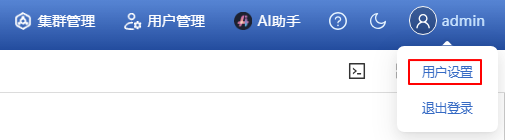
Click the username and select User Settings. Choose Basic Information on the User Settings page that is displayed. Then, you can view the user avatar and username.
Changing a Password
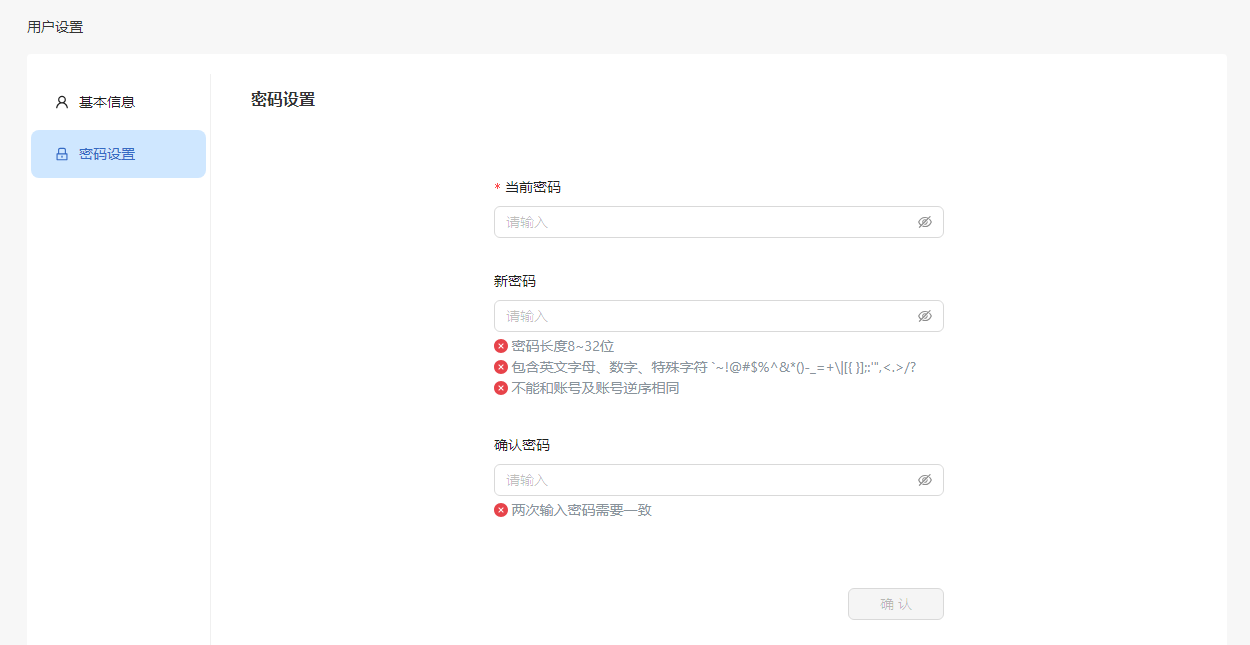
- Click the Password Settings tab. The Password Settings tab is displayed.
- Enter the current password and new password, and click OK. The password must meet complexity requirements.
NOTE
To improve system security, change the password periodically (for example, every six months) to prevent security risks such as brute-force password cracking.
Homepage
After logging in to the openFuyao platform, you can click the openFuyao logo in the upper-left corner to switch to the homepage. The homepage displays cards for quick access to three modules.
- Easy installation and deployment: quick entries to Application Market and Zero-Cost Application Migration.
- Intelligent O&M interaction: quick access to Pluggable Architecture and Application Management.
- Ultimate observability: quick access to Monitoring Dashboard and Cluster Overview.